
Billing & Usage
Get an overview of your app's usage and manage your billing from within your app
Managing Your Billing Details
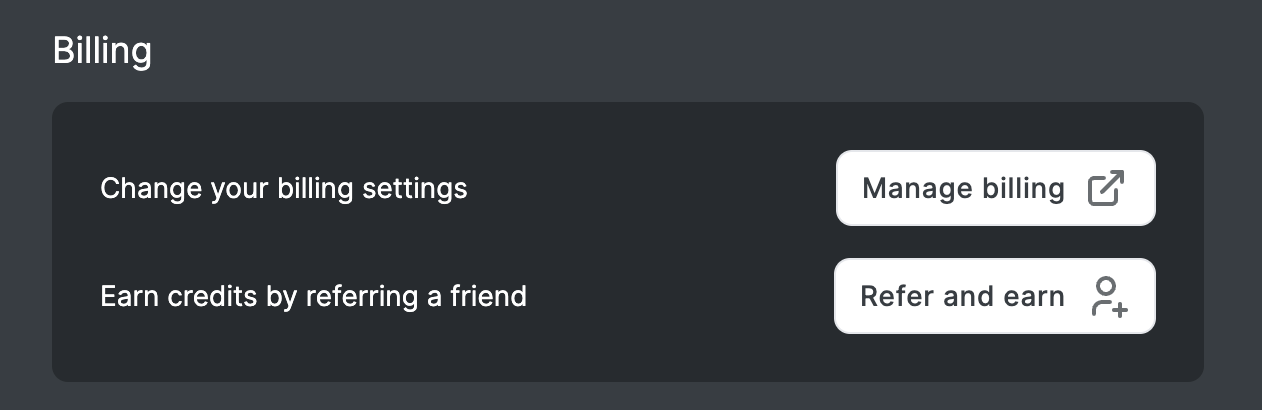
You can manage your billing settings, such as your connected card, billing email address, and invoice information, from the Manage billing button. You can also access your billing details directly at: https://portals.rowmesh.com/~/_/settings/billing
Rowmesh uses 's secure Billing Portal to let you manage your billing details safely and securely.
Updating Invoice Information
To ensure your invoices display the correct billing details:
Navigate to Settings > Billing & Usage
Click the Manage billing button to open Stripe's secure portal
Update your billing information including:
Company name
Billing address
Tax ID (if applicable)
Billing email address
Save your changes - updates will be reflected on future invoices
Change your Rowmesh Plan
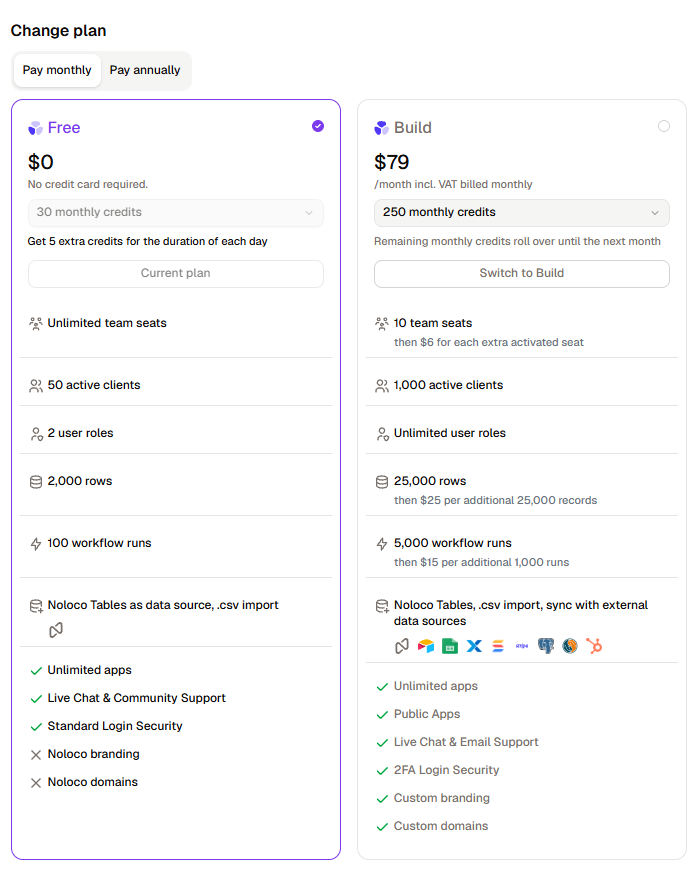
You can easily change your Rowmesh plan at any time from your app's billing page, whether you're currently on the Free plan or already subscribed to the Build plan.
Simply select the plan you want to switch to and confirm your choice on the next page. Your subscription will be updated accordingly.
Adjusting your AI credits
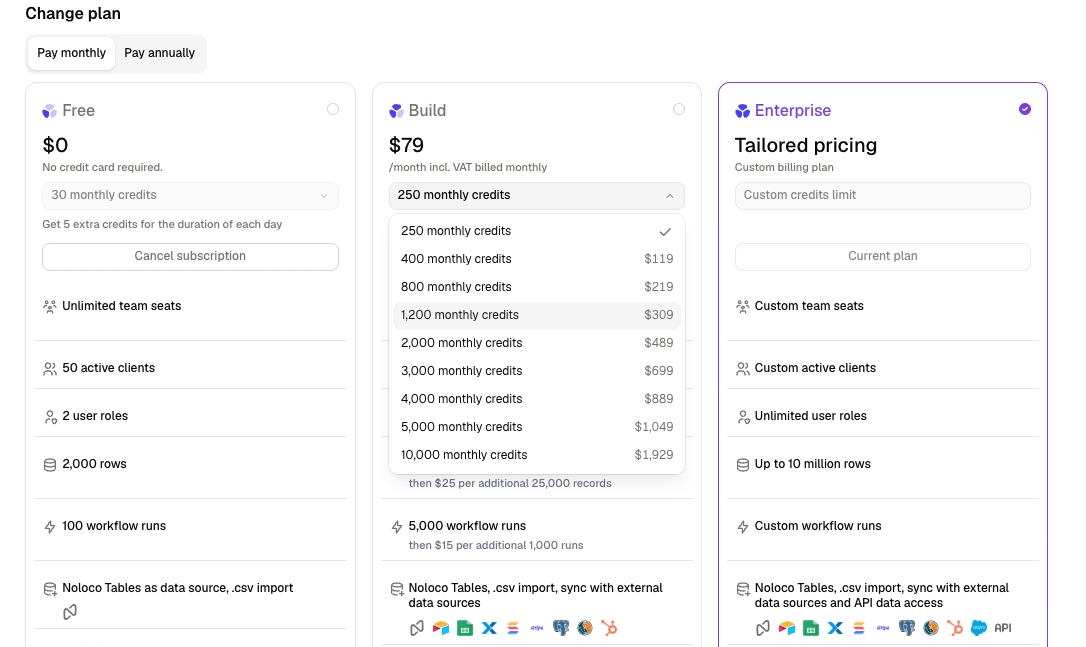
Each plan card shows the monthly AI credits that come with it. On the Build card, this is a dropdown, so you can move to a higher or lower monthly credit allowance yourself:
Navigate to Settings > Billing & Usage
Open the monthly credits dropdown on the Build plan card
Choose the allowance you want — the resulting monthly price is shown beside each level
Confirm the change
Build starts at 250 credits a month and steps up as far as 10,000, with larger allowances costing less per credit. Workspaces that need more than 10,000 move to Enterprise.
On the Free card, the credit allowance is shown for reference but can't be changed, and on Enterprise your credit limit is set with your account team.
Account Usage
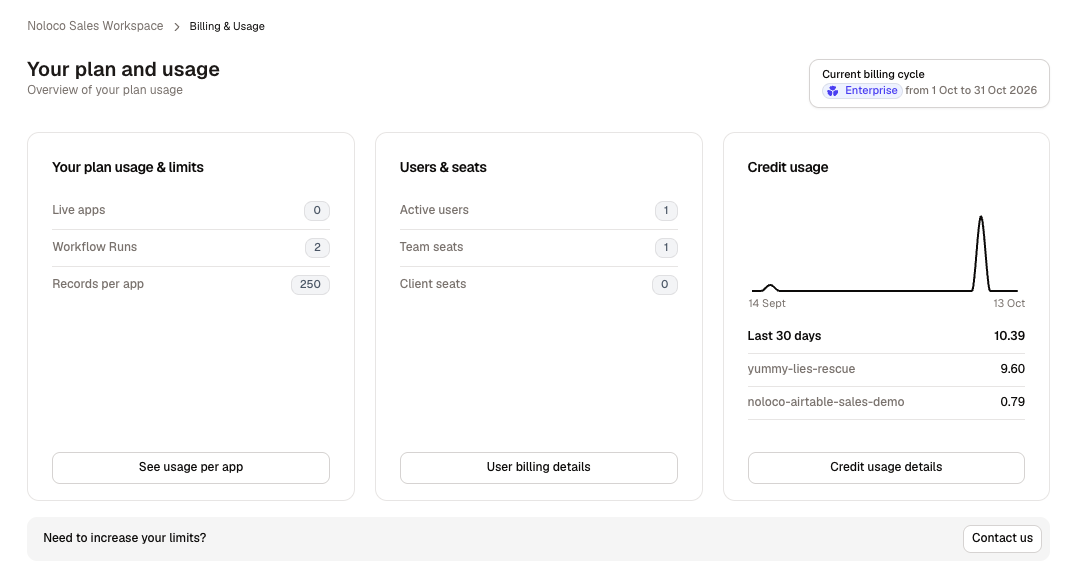
The account usage section shows your usage across all of the apps in your workspace (even if you only have one app). The Current billing cycle summary at the top of the page shows your plan and the dates of the cycle your usage is being counted for.
Usage is split into three cards:
Your plan usage & limits: Your live apps, workflow runs, and records, compared to your plan's limits. Click See usage per app to see how that usage is spread across your apps.
Users & seats: How many active users you have this billing period, split into Team seats and Client seats. Click User billing details to see exactly which users are being counted — see Seeing which users are counted below.
Credit usage: How many AI credits you've used this billing cycle. Click Credit usage details for a breakdown.
If you're getting close to your limits, the Need to increase your limits? bar below the cards takes you to the plan options.
Seeing which users are counted
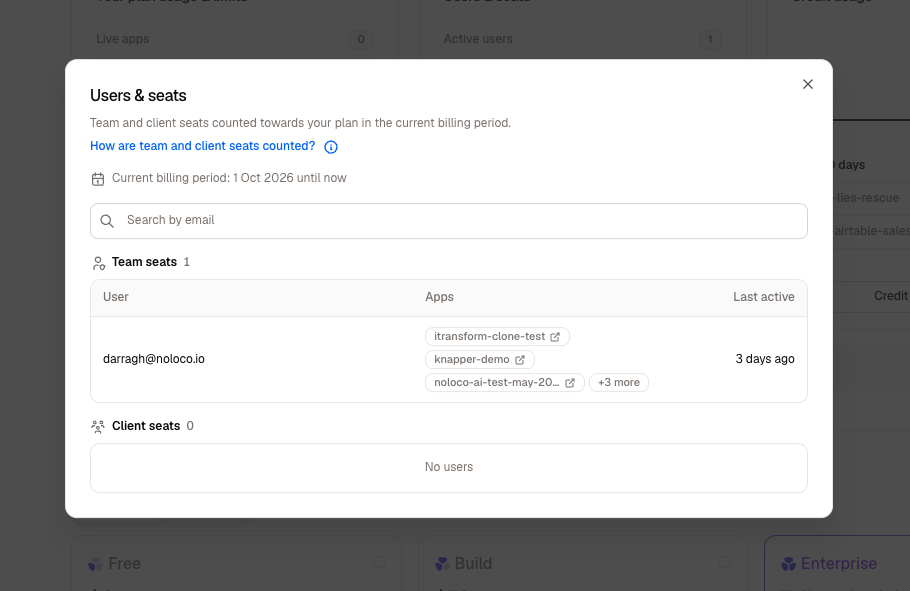
The User billing details button on the Users & seats card opens a list of every user counted towards your plan in the current billing period, grouped into:
Team seats — users counted as team members
Client seats — users counted as client users
For each user you can see:
User — their email address
Apps — the apps they use, linked so you can jump straight to each one. The first three are shown, and the rest are listed in a +N more tooltip
Last active — when they were last active, with the exact time on hover. Users who have never been active show Never
Each group is ordered by most recently active. Use Search by email to find a specific user, and the period line at the top of the list shows the date the current billing period started counting from.
This list is the same set of users behind your seat counts, so it's the quickest way to check why someone is taking a team seat rather than a client seat. To learn how users are sorted into each group, see User types.
App usage
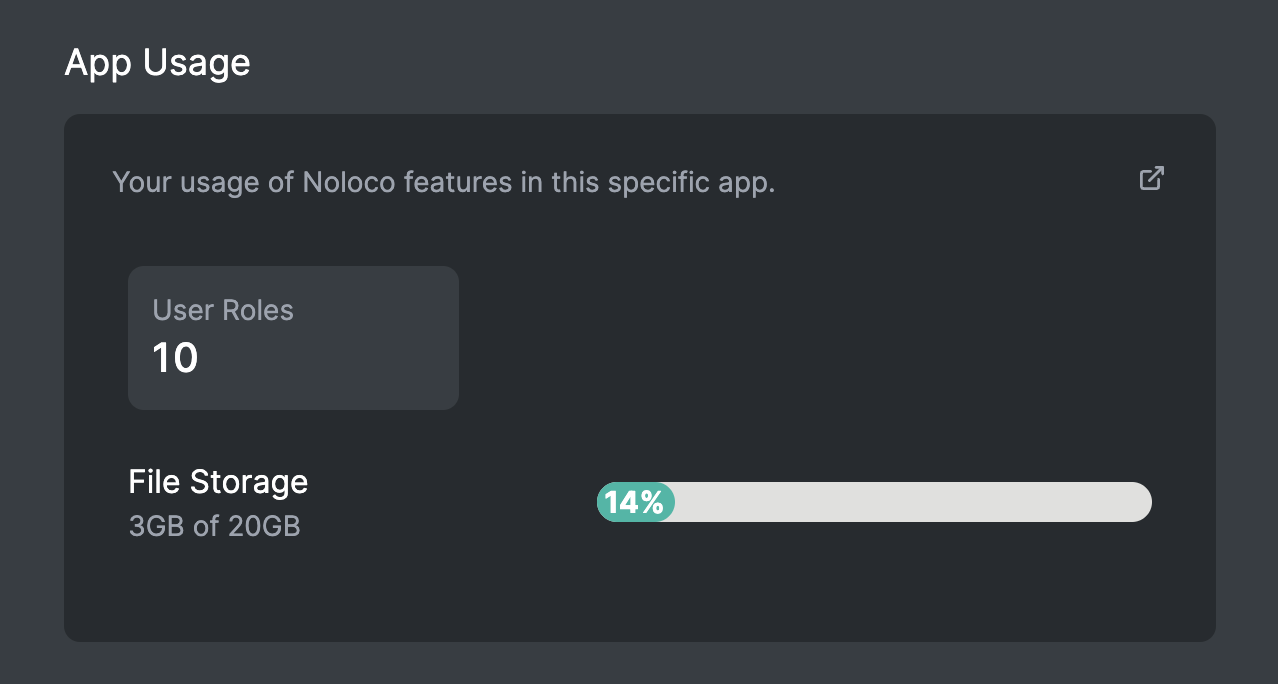
The account usage section shows you your usage in the app you're currently in
File Storage: The size of all of the files you have uploaded or synced with your Rowmesh app Each plan comes with different file storage limits, after which you will need to pay for an overage
User Roles: The number of different roles you have created in your Rowmesh app, including the 2 default roles
Last updated
Was this helpful?