
iFrame embeds
This page talks through how you can embed an iframe in your Rowmesh app.
In this video, you'll learn how to add static and dynamic iframe embeds to your Rowmesh app.
With static iframe embeds, you embed a URL where you want the same content to be visible to every user who can see that page. In our example, we embedded the Rowmesh support guides at .
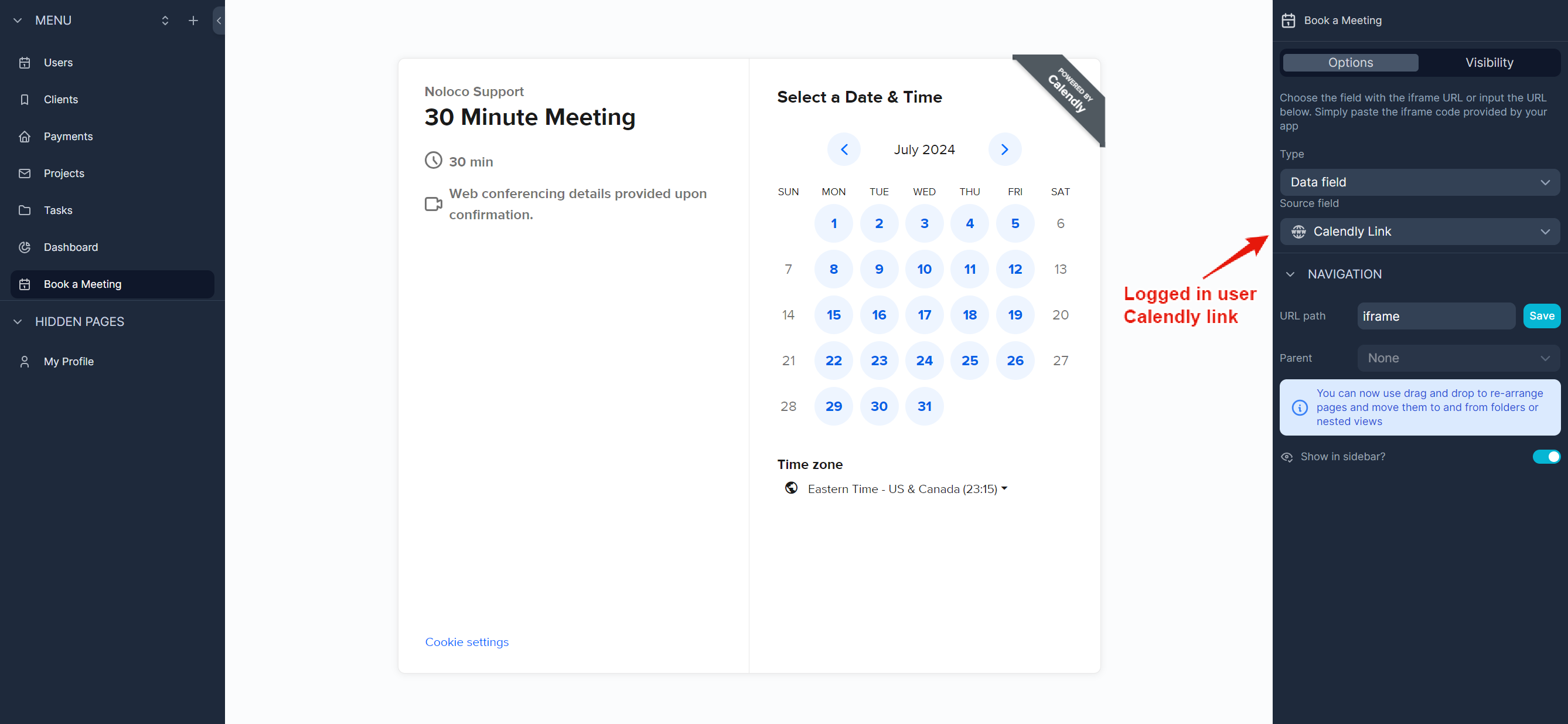
With dynamic iframe embeds, you can show different content to different users by pulling dynamic data associated with your Rowmesh Users table. Our example shows how you can embed different Calendly links for different users.
In the video above, we show how to use a static URL or pull a full URL from your data tables. However, there is a third option: you can simply append dynamic data to the end of the URL as well (as shown in the screenshot below).
Use a full iframe tag
You can provide a complete <iframe> tag instead of only an iframe URL. This lets you set the attributes your embedded application needs, including iframe permissions and other standard iframe attributes.
Detect the available size
If the embedded page needs its available size, add a script to that page to detect it. The embedded page is responsible for detecting its own size.
Enabling Microphone and Camera Access for an iFrame Embed in Rowmesh
These steps allow you to enable microphone and camera access for a web application embedded in a Rowmesh iframe page. The instructions assume you are using an iframe to host your application and require user access to the microphone/camera for functionalities like voice or video recording.
Prepare Your iFrame Embed Code
Use the following iframe snippet as a template. Replace
https://example.comwith the URL of the web application you want to embed.The
allowattribute explicitly grants permission for microphone and camera access to the specified URL.Ensure the
srcattribute points to your application's URL.
Embed the iFrame in a Rowmesh Page
To embed the iframe in a specific page in Rowmesh, follow these steps:
Enable build mode on your app
Click the + icon at the top left in the left-side panel
Select Iframe embed
In the right-side panel, select the Options tab. You will see a Type dropdown
Choose Input a URL, and paste the iframe snippet into the field
Test the iFrame
Open the Rowmesh page containing the iframe.
Confirm that the browser prompts the user to allow microphone access.
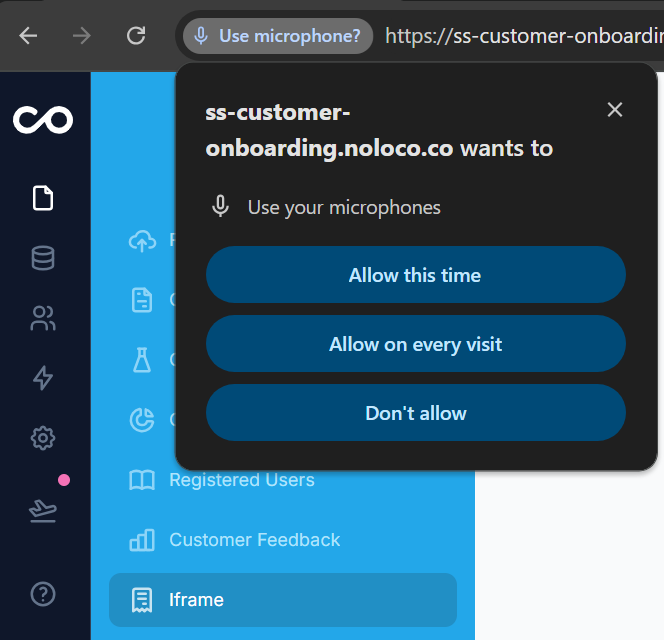
Test the embedded application to ensure audio and other features requiring microphone access function correctly.
Troubleshooting
If microphone access is not working, verify the
allowattribute is correctly set and matches your application’s domain.Refer to this for additional insights on iframe permissions.
Last updated
Was this helpful?