
Documint
Create Professional Documents, like Invoices, Receipts, Stock Lists, Barcodes and QR Codes from your data in Rowmesh
Documint’s powerful document generation engine allows you to quickly and easily create professional documents from your data in Rowmesh, saving you time and effort.
What documents can I generate with Documint?
With Documint you can generate Forms, Proposals, Quotes, Contracts, Reports and Invoices from your Rowmesh data.
How do I generate a document from Rowmesh with Documint
The easiest way to generate a PDF from Rowmesh with Documint is to use Airtable, and Documint's simple
In short, this allows you to add a formula field to your Airtable table that when opened will generate the PDF and attach it to your record in Airtable.
This link can then be opened from Rowmesh, and the using Rowmesh's Airtable Integration the newly created file will instantly sync back to your Rowmesh app.
Generating a PDF in Rowmesh with Documint - Step by Step
In Documint
Visit to create a Free account
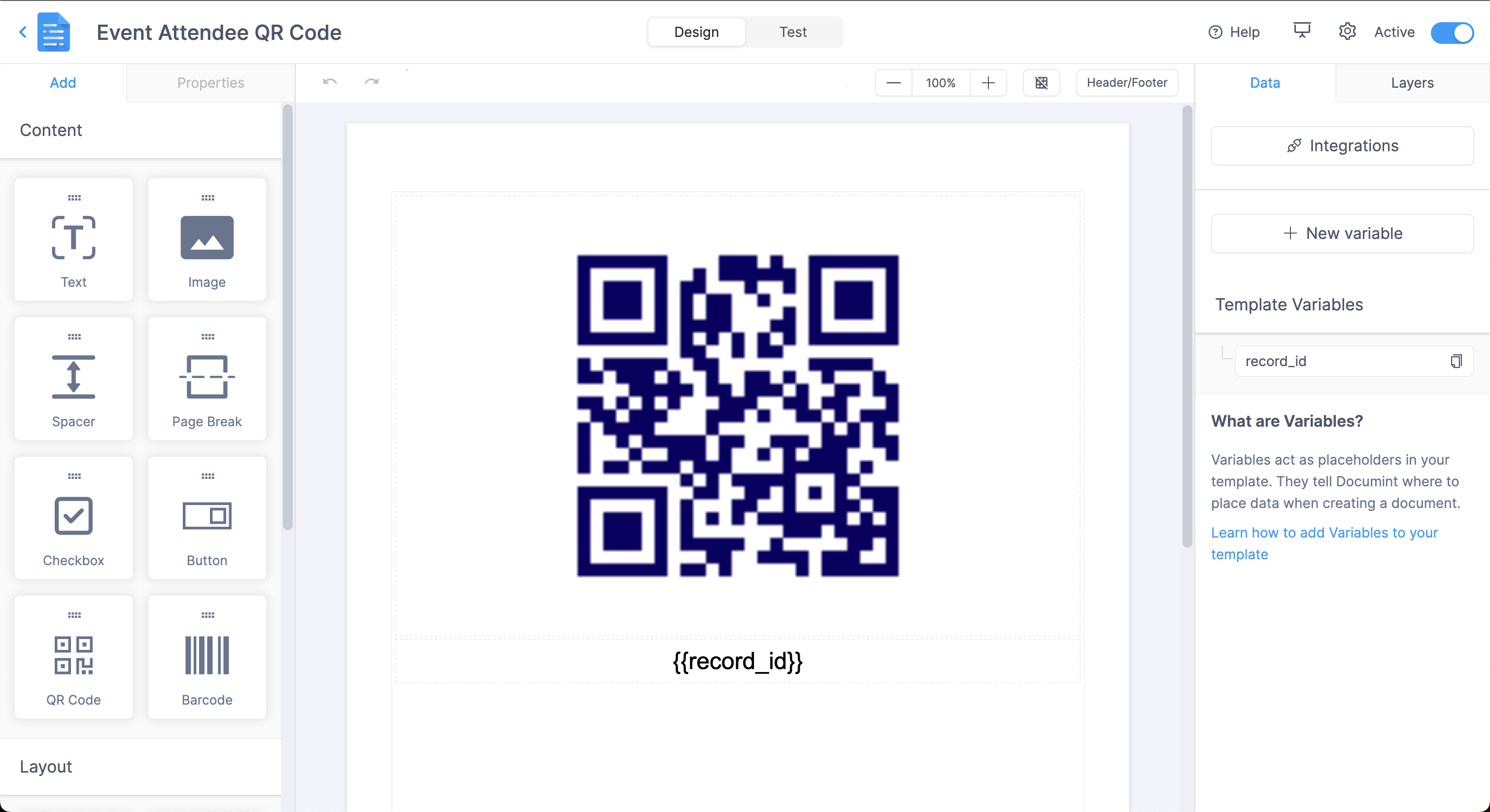
Add a new template, choose from one of their templates, or start with a blank document Follow to learn more
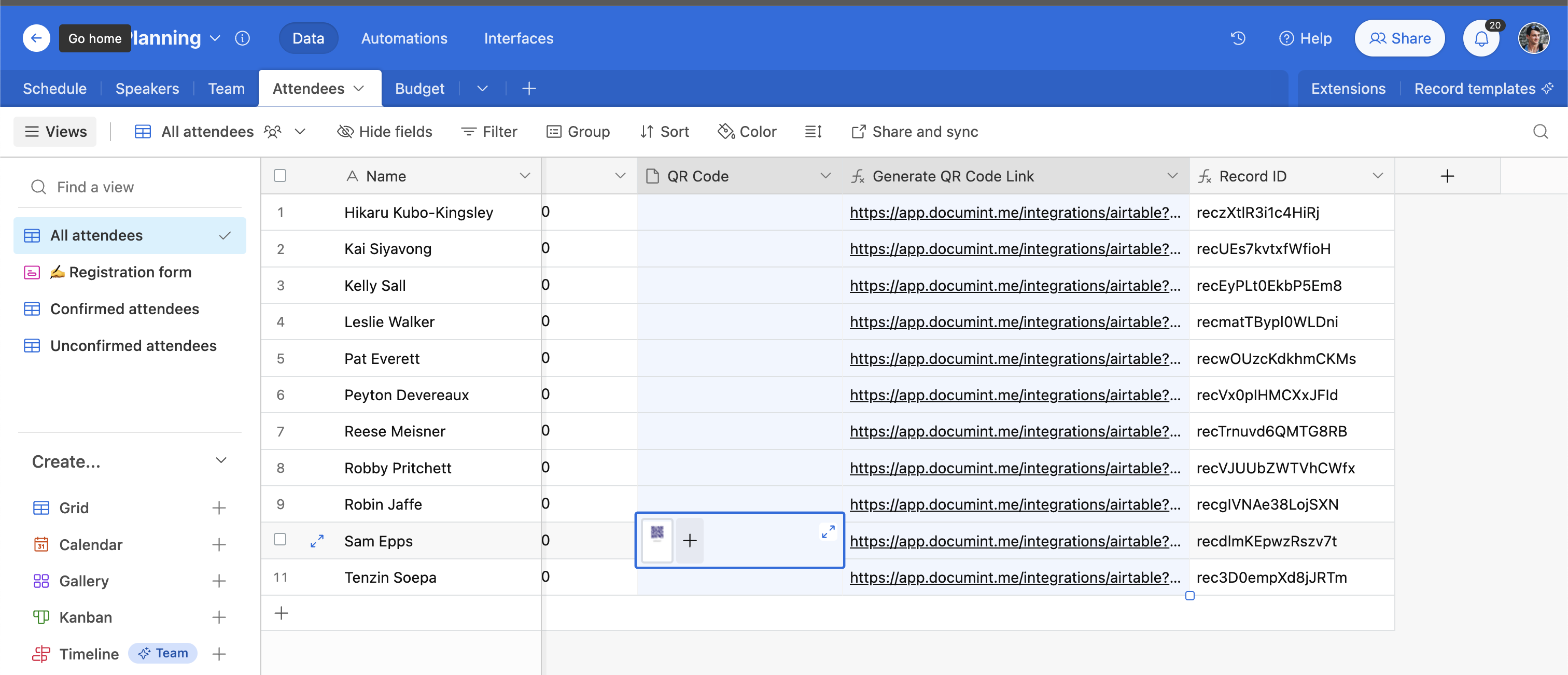
Once you've got your template, and have connected Documint to Airtable with your API key, you can create 2 new columns in your Airtable table:
The attachment field for your new PDF
The formula field for your document generation link.
Now that you have the following you are ready to move over to Rowmesh
A table with an attachment field and a dynamic documint generation link
A Documint template customized with your Airtable
In Rowmesh Back in your Rowmesh app, where you have your Airtable table synced
Open a record view of one of the records in your table
Add the new Attachment field to the layout, using the Details block or the File Gallery &#xNAN;Pro tip: You can use visibility settings to only show the gallery when your PDF has been attached to your record.
Add an Action Button to the Record page
Configure it to be a One-Click action button
Add an action to the action button to Navigate To
Choose Url and then for the URL choose the formula field you created with the Documint Generation link
The last step is to use your action button to generate the PDF with Documint
Last updated
Was this helpful?